
OneDrive is one of the most popular cloud file storage service developed by Microsoft. You can easily share the files and folders that you store in OneDrive by creating a share link. But how to get a direct/native link for OneDrive files? How to get a permanent link for OneDrive files?
What’s the use of native links? Native/direct link is needed especially for cloud files while you want to provide a download link, anyone can download a file by clicking on the native link. And for a publisher, it’s very important to have native/permanent file link for downloadable items.
Like most other cloud-hosted file-sharing sites, OneDrive doesn’t provide native links for the files you store there. But it’s very easy to get them by doing simple tricks!
Get Direct/Permanent Link for OneDrive Files
To get a direct or permanent link for an OneDrive file, follow the two simple steps below:
Step 1. Get OneDrive File Embed Code
To get the embed code for a file, open the OneDrive folder containing the file you want to share and then right-click the mouse on the file to get all available menu options for the file.
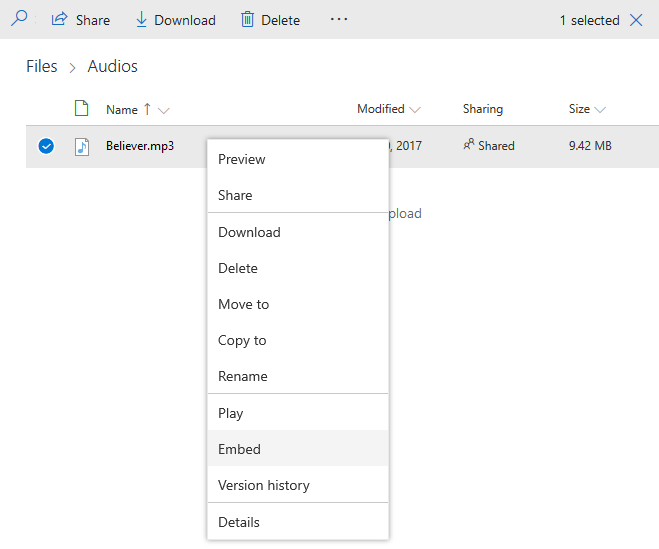
From the options, click on the “Embed” menu option. After this, the embed code will be generated for the file in a new window. Now Copy (Ctrl + C to copy) the file embed code by clicking on it.

Haven’t got it yet? You can also get the embed code by clicking on the dots (•••) after selecting the file you want to share as seen in the picture below.
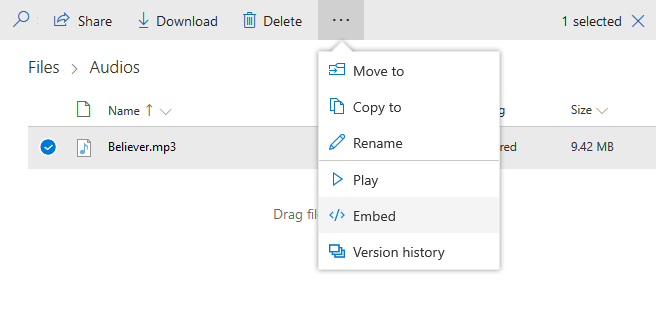
After finishing the copy operation, paste the embed code in a notepad or text editor.
Step 2. Modify OneDrive File Embed Code
Let’s start the embed code modification! An OneDrive embed code looks like the following:
<iframe src="https://onedrive.live.com/embed?cid=You have to modify this code, remove everything except the source URL of the file and then replace embed with download to get direct/permanent link. After the modification, we get:
https://onedrive.live.com/download?cid=
That’s it! That’s the direct or native link for the OneDrive file and it’s a permanent link. The direct/permanent link will skip the OneDrive web viewer. You can test the link we shared in the process. It should start to download without going to the OneDrive website.
You can get OneDrive direct/permanent/native link for any file by this process. The best thing is, OneDrive provides native links for large files also, where Google Drive doesn’t provide for large files. There is no way to skip Google Drive web viewer for large files (larger than 100MB)!
Hope for the best! Let’s discuss more through comments 🙂